
Archiving an Amazon order has never deleted anything. The order remains stored on the server side, with all transactional data: product reference, amount, delivery address, payment method. The only effect is to remove the line from the main view of the history. Understanding this technical distinction is the starting point for any privacy approach on the platform.
Disappearing archiving option on Amazon: why and how to react
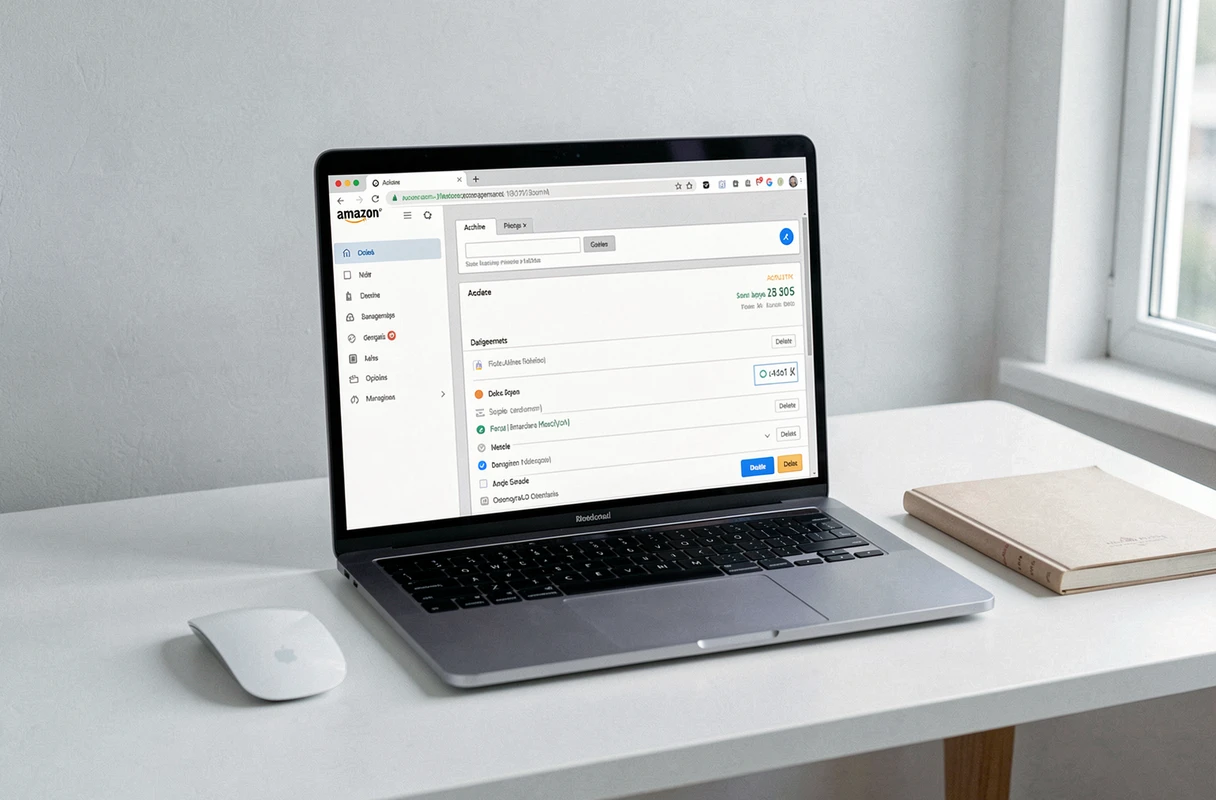
Since the end of 2025, an increasing number of Amazon accounts no longer have the “Archive Order” button in the web interface. The disappearance affects accounts gradually, without prior notification. We observe that this removal is part of a broader overhaul of the order management interface.
If the button has disappeared from your account, the first check is to log in from a desktop browser (not the mobile app, which has never offered archiving). Go to “Your Orders,” locate the relevant order, and check if a context menu still offers the option. On some accounts, the wording has been moved or renamed.
In the complete absence of the option, there is no technical recourse on the user side to force archiving. The only remaining lever to reduce the visibility of a purchase involves other mechanisms that we detail in the following sections. Before exploring these alternatives, let’s recall that it is possible to archive or delete an Amazon order depending on your account’s current configuration, but this option is no longer universal.

Deleting an Amazon order: what the platform actually allows
No mechanism allows for the permanent deletion of a past order. This limitation is structural. Amazon retains the complete history for legal reasons (tax obligations, right of withdrawal, legal guarantee of conformity) and commercial reasons (feeding the recommendation algorithm).
What you can delete, however, are the peripheral traces that feed the visibility of your purchases:
- Browsing history: in “Your Browsing History,” each viewed item can be removed individually, or the entire history can be disabled via the “Manage History” button.
- Recommendations related to a purchase: in “Improve Your Recommendations,” you can indicate that a purchased item should no longer influence the suggestions displayed on the homepage.
- Reviews and ratings left on a product: a review published under your name can be deleted from your public Amazon profile.
These combined actions reduce the exposure surface of a purchase without affecting the order itself. Hiding peripheral traces is more effective than archiving alone, as archiving did not neutralize recommendations or browsing history.
Amazon archiving on web browser: procedure and technical limits
For accounts that still have the functionality, archiving remains exclusively accessible from a web browser. The Amazon mobile app (iOS and Android) does not offer this option. On a smartphone, you must go through the browser by enabling “Desktop Site” mode to access the full version of the interface.
Step-by-step archiving procedure
Log in to amazon.fr from a computer. Go to “Your Orders.” Identify the order to hide, then click on “Archive Order” in the associated menu. The order disappears from the main list.
To find it later, a “Archived Orders” filter is available in the dropdown menu on the orders page. Any archived order can be restored to the main history at any time. The operation is reversible in both directions.
What archiving does not do
The archived order remains linked to the account. It appears in the downloadable data via the “Request My Data” tool (GDPR). It continues to feed the recommendation engine unless manually intervened in the dedicated settings. Another user with access to the account (Amazon Household family profile, for example) can still find it via the archiving filter.
Amazon purchase privacy: concrete alternatives beyond archiving
With archiving on the decline and deletion non-existent, we recommend addressing the issue upstream rather than downstream. Several approaches reduce the visibility of a purchase right from the order.
- Use a dedicated delivery address (pickup point, Amazon Locker) to prevent an identifiable package from arriving at a shared address.
- Order from a separate Amazon account, not linked to a Household profile. Each account has its own isolated history.
- Pay with a prepaid card or an Amazon gift card to dissociate the purchase from the shared bank statement.
- Disable browsing history before viewing a product, so that the homepage displays no related suggestions.
The combination of a separate account, prepaid card, and pickup point provides the highest level of privacy accessible without third-party tools. None of these measures require any particular technical skill.
Also, consider checking email notifications. Amazon sends order confirmations and shipping notices to the address associated with the account. If this address is shared (family email box), information leakage often occurs through email, not through history.
The gradual disappearance of archiving on Amazon reshuffles the cards in terms of privacy management. Users who relied on this feature to hide a one-time purchase must now combine several levers upstream of the order. The real blind spot remains the impossibility of deleting a past order, a constant that neither archiving nor any other option has ever resolved.